FlareWatch is a web app, not an App Store app. On iPhone you install it by adding it to your home screen from Safari, which gives you a real app icon, a full-screen experience without the Safari browser chrome, and push notifications for stake expiry and unclaimed rewards. It runs directly off the live site at www.flarewatch.io — no download, no permissions, no account.
Install on iPhone (iOS Safari)
Open Safari on your iPhone and go to www.flarewatch.io. You must use Safari — Chrome on iOS cannot install web apps to the home screen. Then follow these steps.
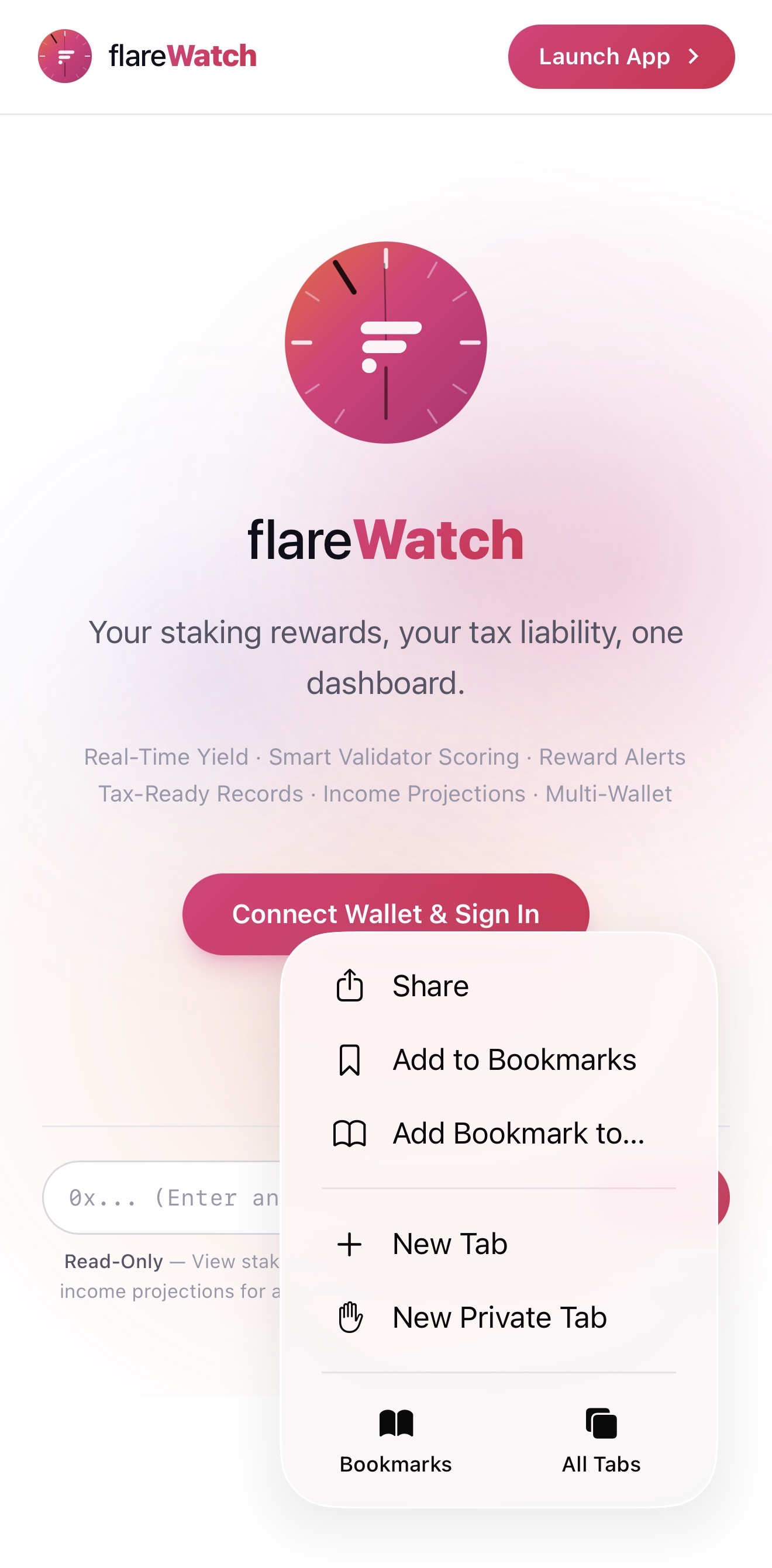
Step 1 — Tap the Share button
With the FlareWatch landing page open, tap the share icon in Safari's bottom toolbar (the square with the upward arrow). A menu slides up from the bottom.
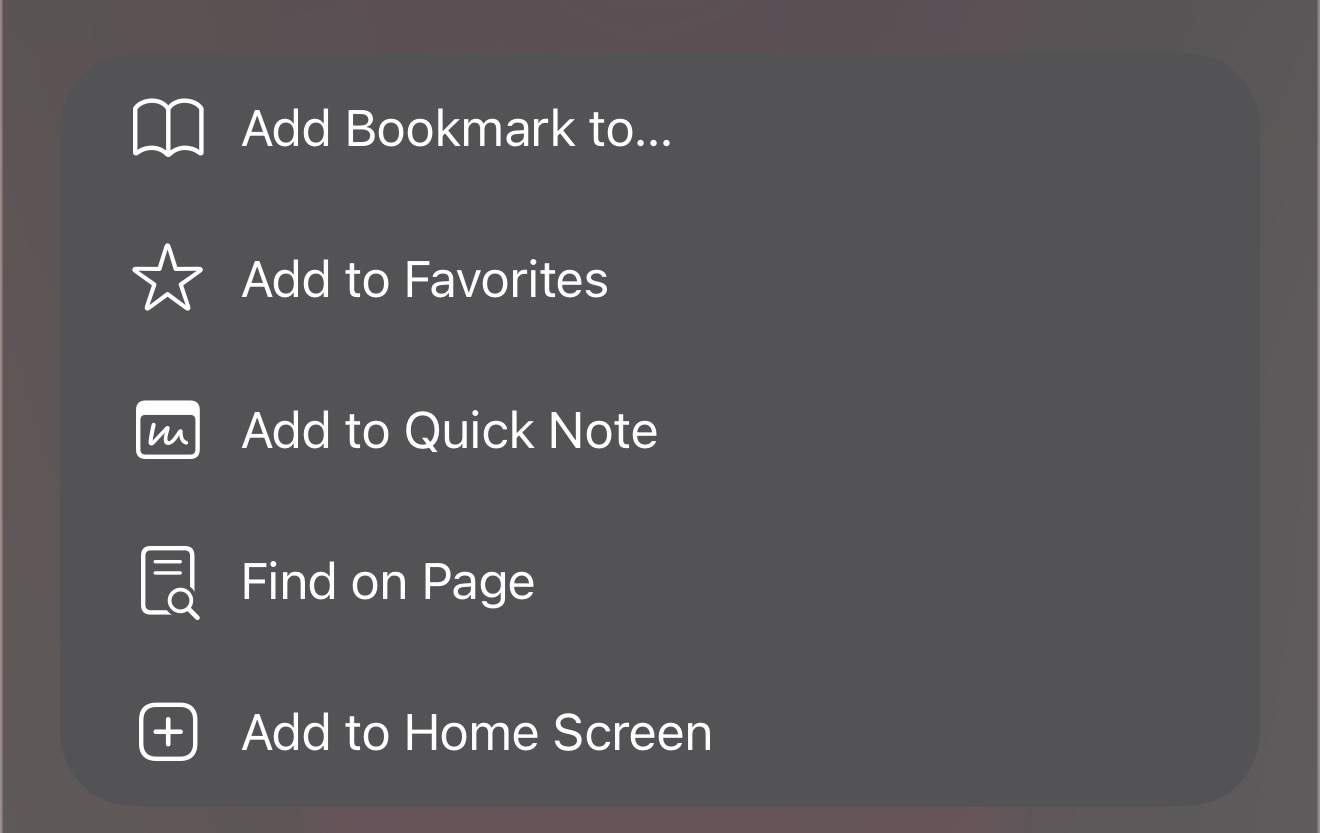
Step 2 — Choose "Add to Home Screen"
Scroll down past the row of contacts and tap Add to Home Screen. It's near the bottom of the menu, with a small plus-in-a-square icon.
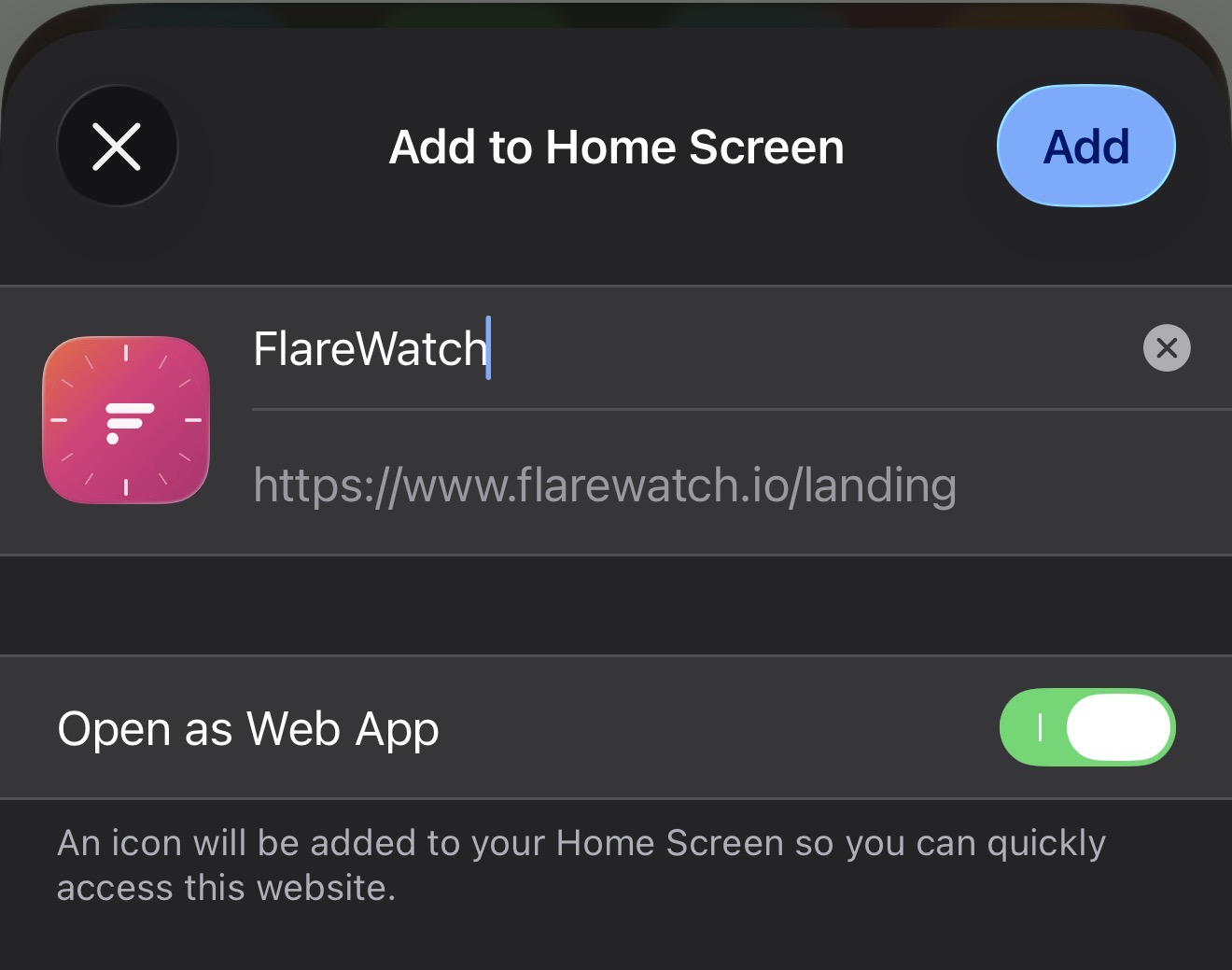
Step 3 — Confirm with "Add"
Safari shows a confirmation card with the FlareWatch icon, the name you'd like for the home-screen shortcut, and an Open as Web App toggle. Leave the toggle ON — that's what makes the icon launch as a real app instead of in a Safari tab. Tap Add in the top right.
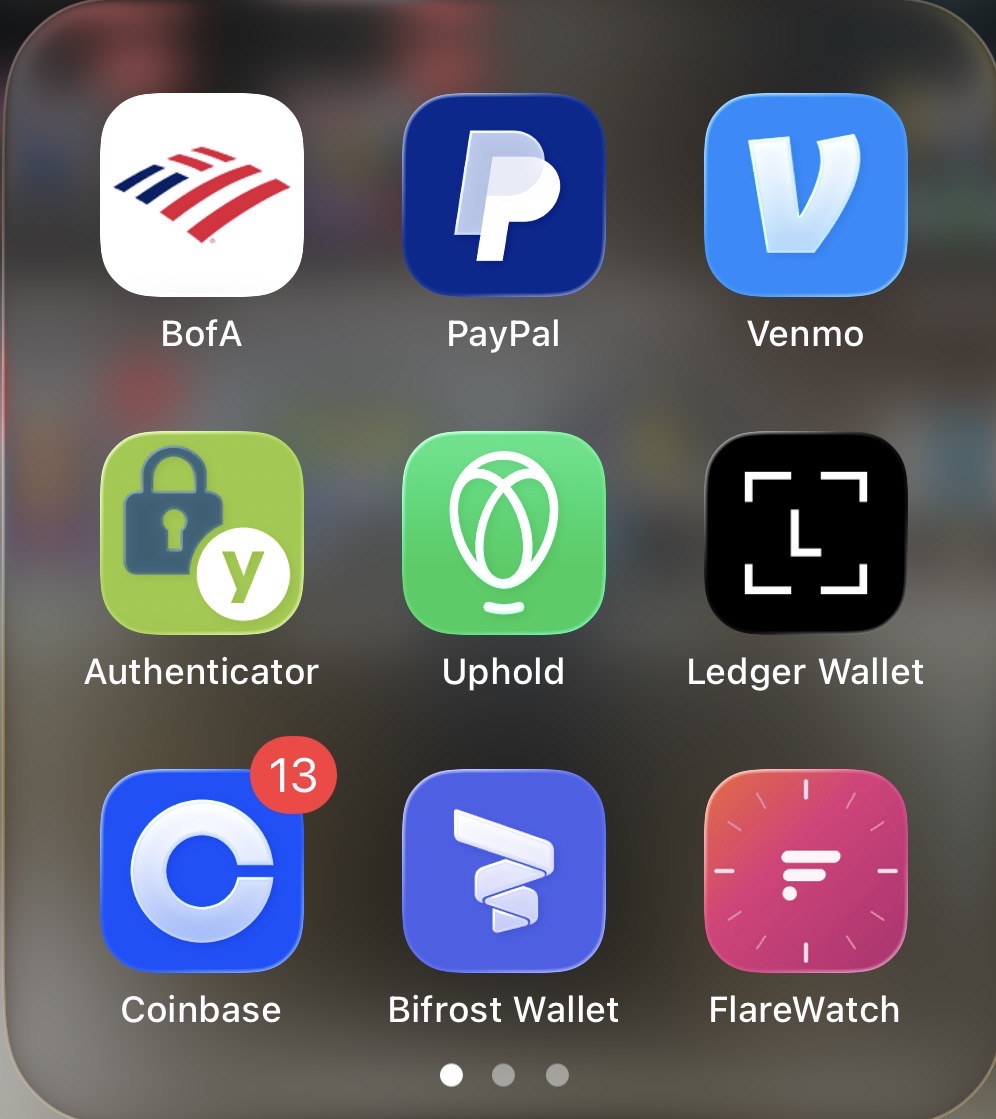
Step 4 — Done
FlareWatch now lives on your home screen. Tap the icon and it opens in full-screen, just like a native app. Sign in once and your session persists across launches.
Install on Android (Chrome)
On Android, open Chrome and go to www.flarewatch.io. Tap the three-dot menu in the top right, then choose Install app (sometimes shown as Add to Home screen). Confirm the install dialog. FlareWatch shows up in your app drawer and on the home screen.
Other browsers — Brave, Edge, Samsung Internet — work the same way: look for an "Install app" or "Add to Home screen" entry in the browser's menu.
If sign-in stalls in the installed app
Occasionally — most often after a security or platform update on our end — an installed PWA can end up in a state where you tap Sign In, get sent to your wallet app (Bifrost, MetaMask Mobile, etc.), come back to FlareWatch, and no signature request ever appears. The app seems frozen on the landing screen.
We've largely automated the fix in the app itself — most users will never see this again. But if your installed PWA was affected during an earlier outage and is still hanging, here are three ways out, in order of least to most invasive:
Option A — Use mobile Safari instead
The simplest workaround: open www.flarewatch.io in regular Safari (not the installed app icon) and sign in there. The browser path uses a different session lifecycle and is never affected by the PWA-specific stuck state. You'll have all the same features — only difference is the page loads inside the Safari chrome instead of full-screen.
Option B — Force-close and reopen the PWA
- Swipe up from the bottom of the screen (or double-tap the home button on older iPhones) to open the app switcher.
- Find the FlareWatch card and swipe it upward to fully close the app.
- Tap the FlareWatch icon on your home screen to reopen.
- Try Sign In again.
This is usually enough on its own. It forces the PWA to load fresh and pick up the latest fixes from the server.
Option C — Delete and reinstall the PWA
If the previous two don't work, the most reliable recovery is to delete the installed app and reinstall it. This clears local browser data the PWA had accumulated from earlier failed attempts.
- Press and hold the FlareWatch icon on your home screen until the icons start jiggling, then tap the minus or remove option.
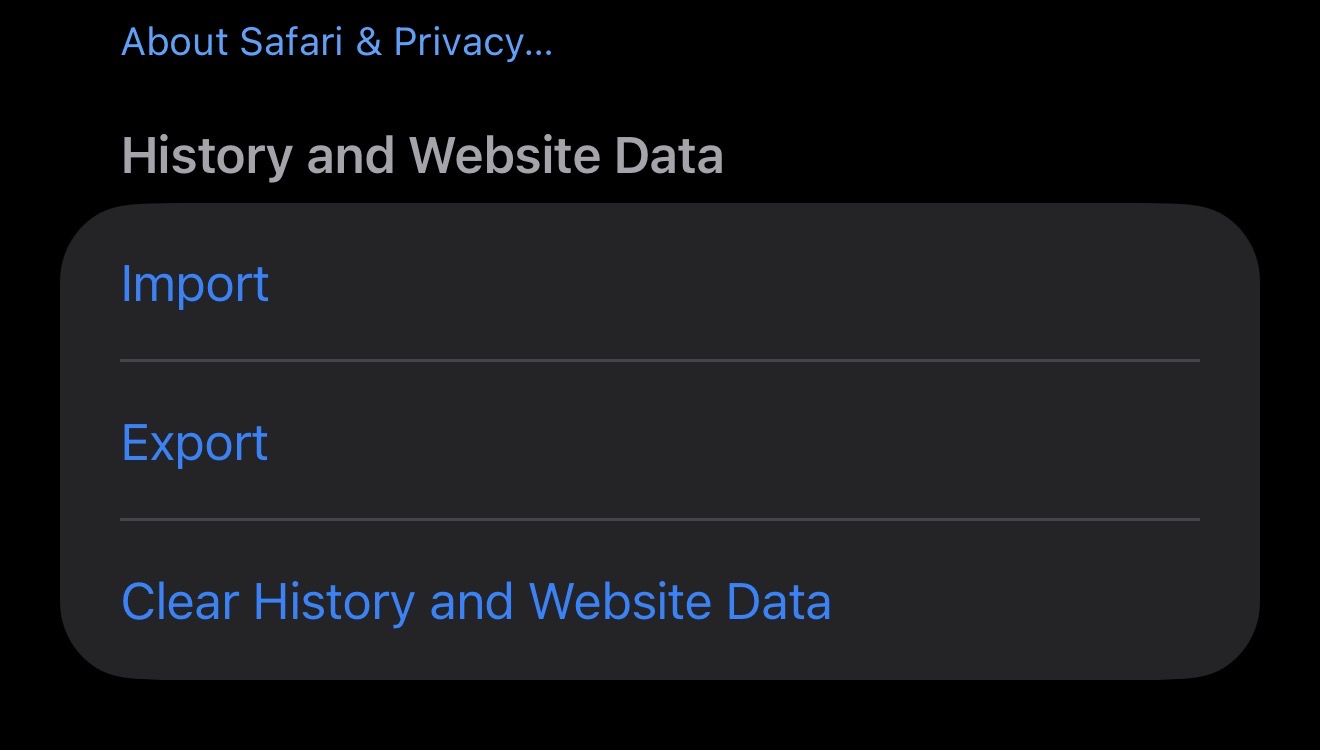
- Open the iPhone Settings app, scroll to Safari, then tap Clear History and Website Data. Confirm.
- Open Safari, navigate to
www.flarewatch.io. - Follow the install steps above to add it back to your home screen.
- Sign in normally.
If notifications are blocked
FlareWatch can send you push notifications for unclaimed rewards, stake expiry warnings, and provider alerts. You enable them from Settings → Notifications. The first time you flip the toggle, your phone asks whether to allow notifications — if you tap "Don't Allow" by accident, the toggle gets stuck in the off position and shows a "Blocked" message.
This isn't something FlareWatch can override from inside the app — once you've denied permission, only your phone's system settings can re-enable it. Here's how to flip it back on.
On iPhone (PWA)
- Open the iPhone Settings app.
- Scroll down to find FlareWatch in the apps list (PWAs show up here once you've installed them).
- Tap Notifications.
- Toggle Allow Notifications on.
- Return to FlareWatch — the toggle in Settings → Notifications is now usable again.
On iPhone (Safari, not installed)
- Open Settings → Safari → Advanced → Website Data.
- Find
flarewatch.ioand swipe left to remove it. (Removes the saved denial.) - Return to Safari, open FlareWatch, and tap the notifications toggle again. You'll get the permission prompt fresh.
On Android (Chrome)
- Tap and hold the FlareWatch app icon, then tap App info (or open Settings → Apps → FlareWatch).
- Tap Notifications and turn them on.
- Alternatively in Chrome itself: tap the lock icon next to the address bar → Permissions → enable Notifications.
On desktop browsers
- Click the lock icon next to the address bar.
- Find Notifications and switch from "Block" to "Allow" (or "Ask").
- Reload the page.
Why install at all?
You don't have to. FlareWatch works exactly the same in any modern browser. The reasons to install are:
- A real home-screen icon so the app is one tap away.
- Full-screen launch (no browser address bar consuming vertical space on small phones).
- Push notifications — only PWAs and native apps can deliver these.
- Faster startup; the app shell is cached locally between launches.
Nothing about installing changes the security posture or what FlareWatch can do. The app remains read-only — it never holds keys or signs transactions on your behalf. See the Security Features page for the full posture.
Still stuck after trying everything here? Send a note to [email protected] with your device + browser + a short description and we'll dig in.